How to Set Up a Size Chart in Vairo
Size charts help customers choose the right size with confidence, improve their shopping experience, and reduce returns caused by incorrect sizing.
With Vairo, you can create customizable size charts, assign them to specific products or collections, and choose how they appear on your storefront.
How the Size Chart Appears on Your Storefront
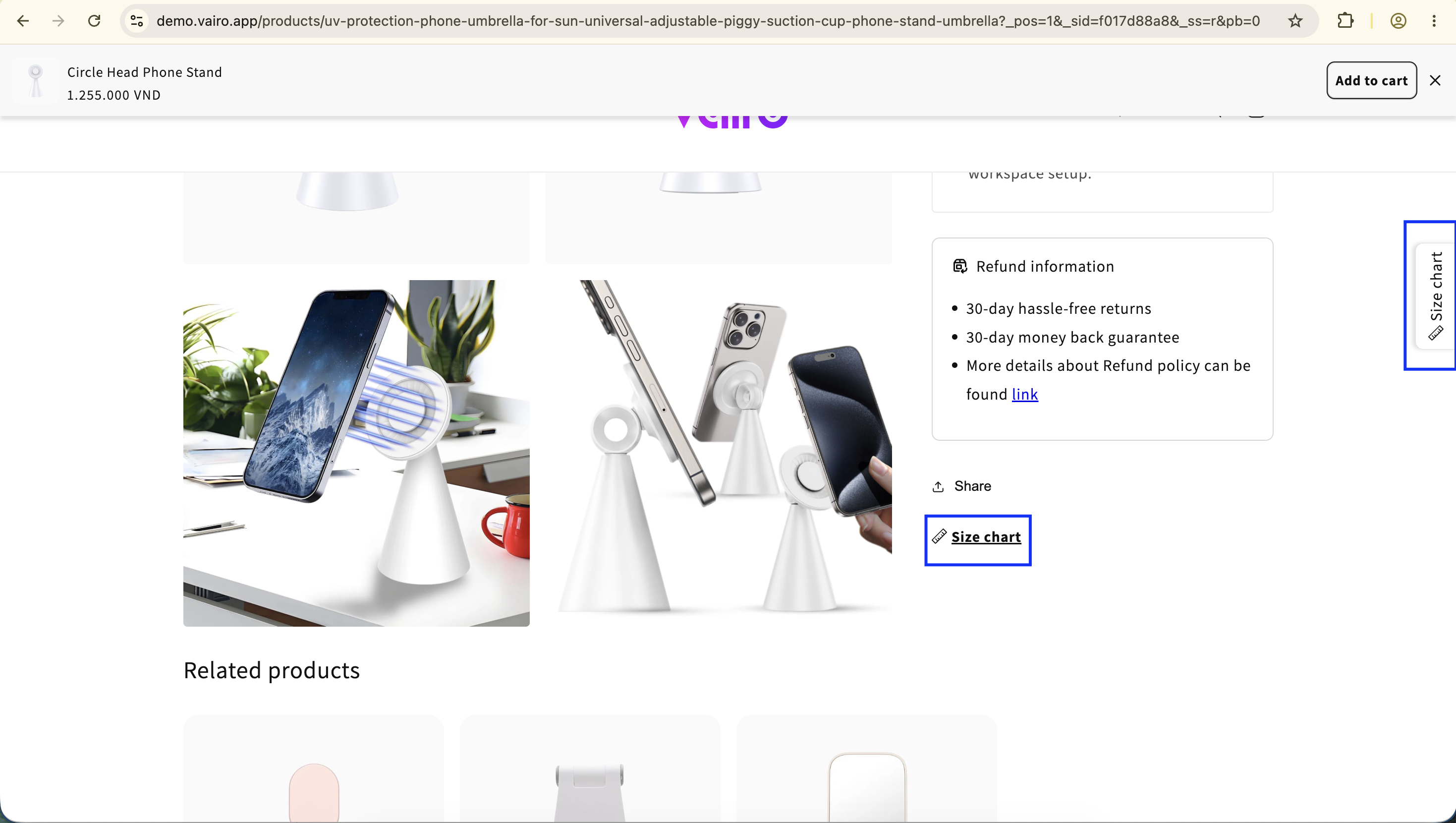
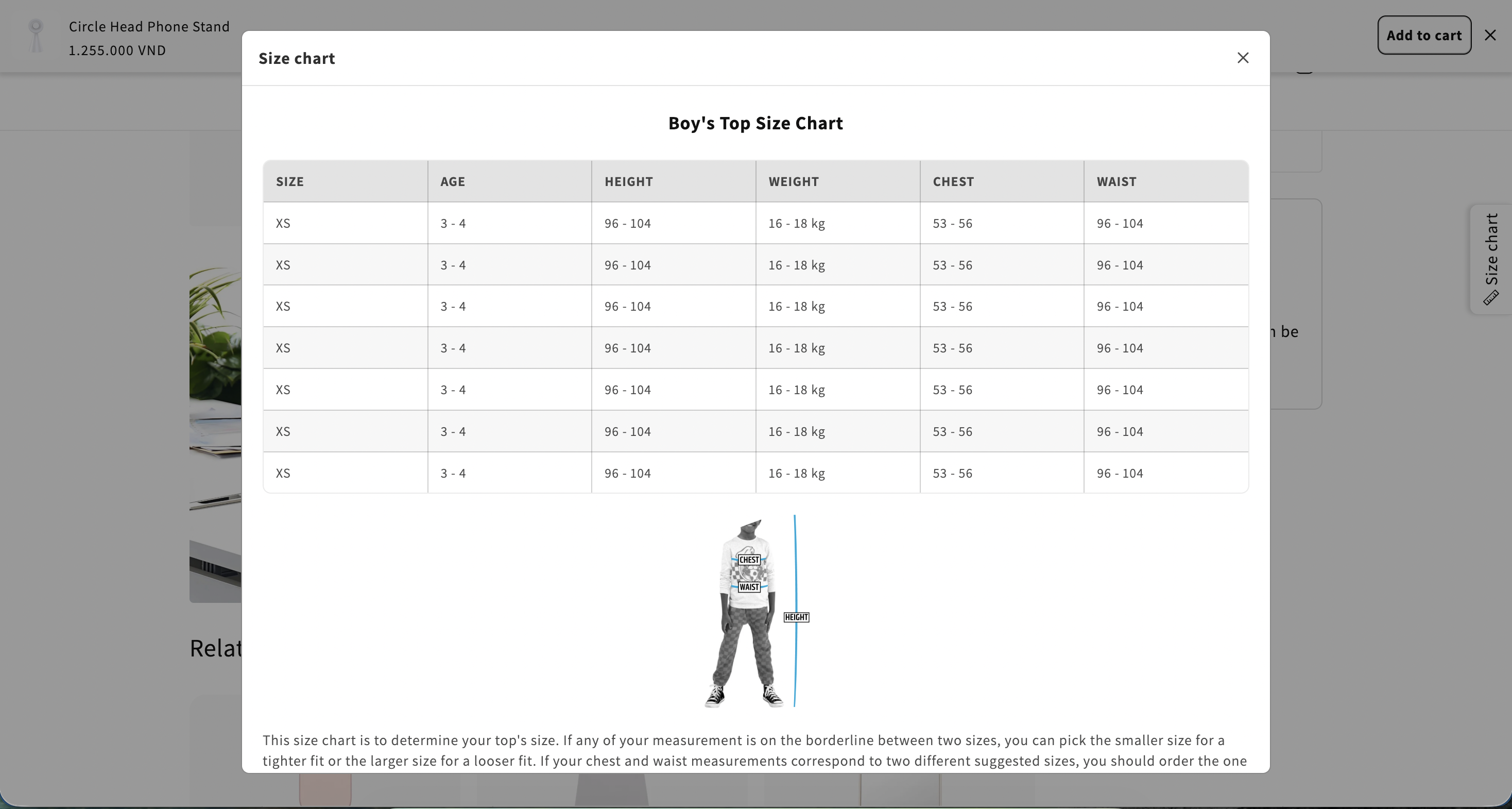
How to Set It Up
Step 1: Enable Vairo App Embed
- Make sure the Vairo App Embed is enabled before creating a size chart.
- If you haven't enabled it yet, follow this guide: How to Enable Vairo App Embed.
Step 2: Create a Size Chart
- Open Vairo in your Shopify Admin.
- Navigate to Page enhancements > Size Chart.
- Click Add Size Chart.
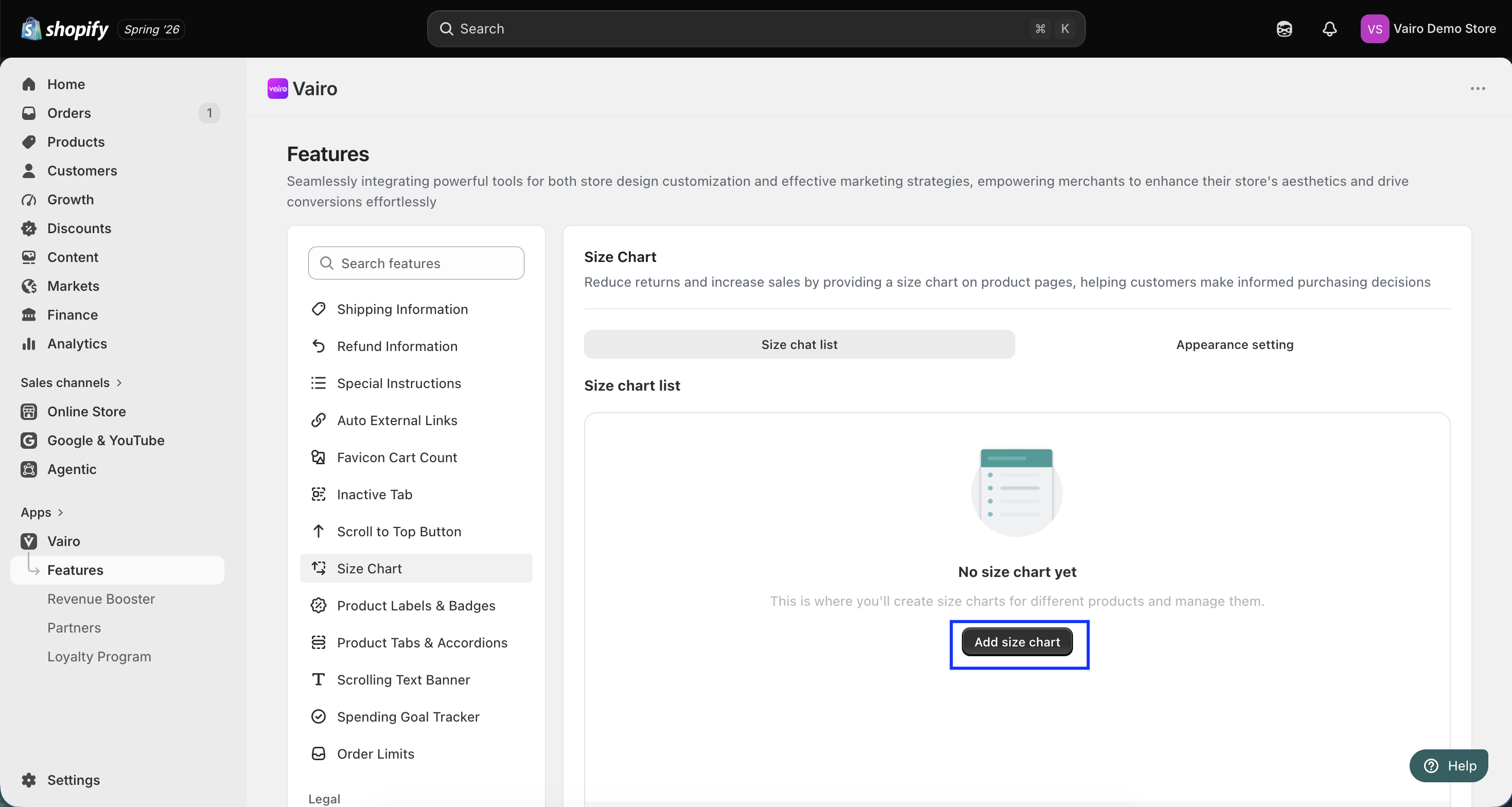
- Then configure your chart:
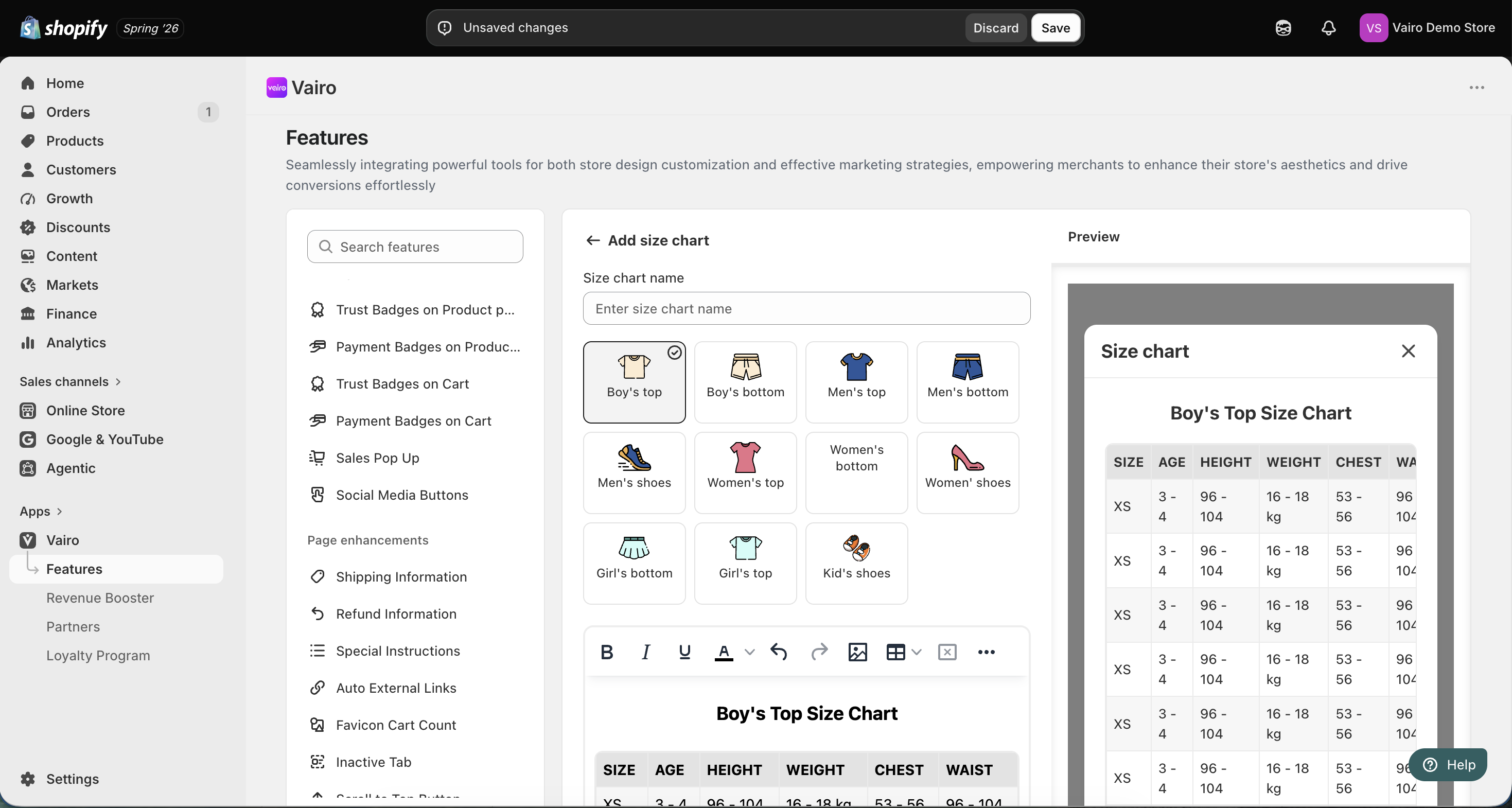
- Enter a name (example: Children Dress Size Chart).
- Choose a suitable template for your product category.
- Create or edit the size table description manually:
- Edit cells directly.
- Add or remove rows and columns.
- Insert images or links.
- Adjust fonts and colors.
- Assign Products by selecting the products where the size chart will appear. You can filter products by Collection or Product tag.
- After creating the size chart, you can Activate or Delete it at any time.
Step 3: Customize the Size Chart Appearance
In the Appearance Settings section, you can change the button text and apply the color for the Size Chart.
Step 4: Choose the Display Position on Your Storefront
You can choose how the size chart appears:
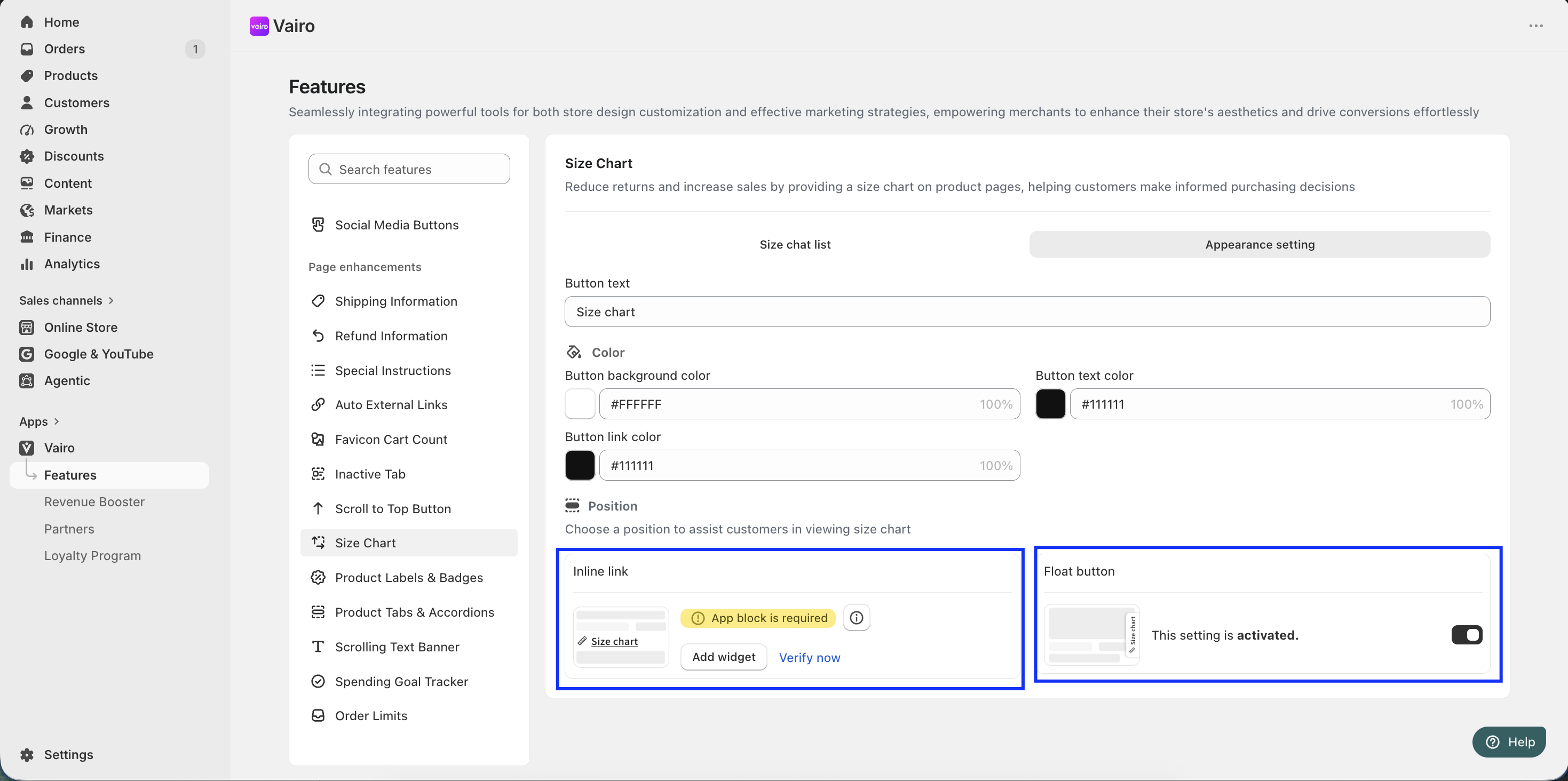
Inline Link
- Select Inline Link if you want the size chart to appear inside the product page.
- Click Add widget to open the Shopify Theme Editor.
- You will be redirected to the Theme Editor, where you can move the Size Chart app block to your preferred position.
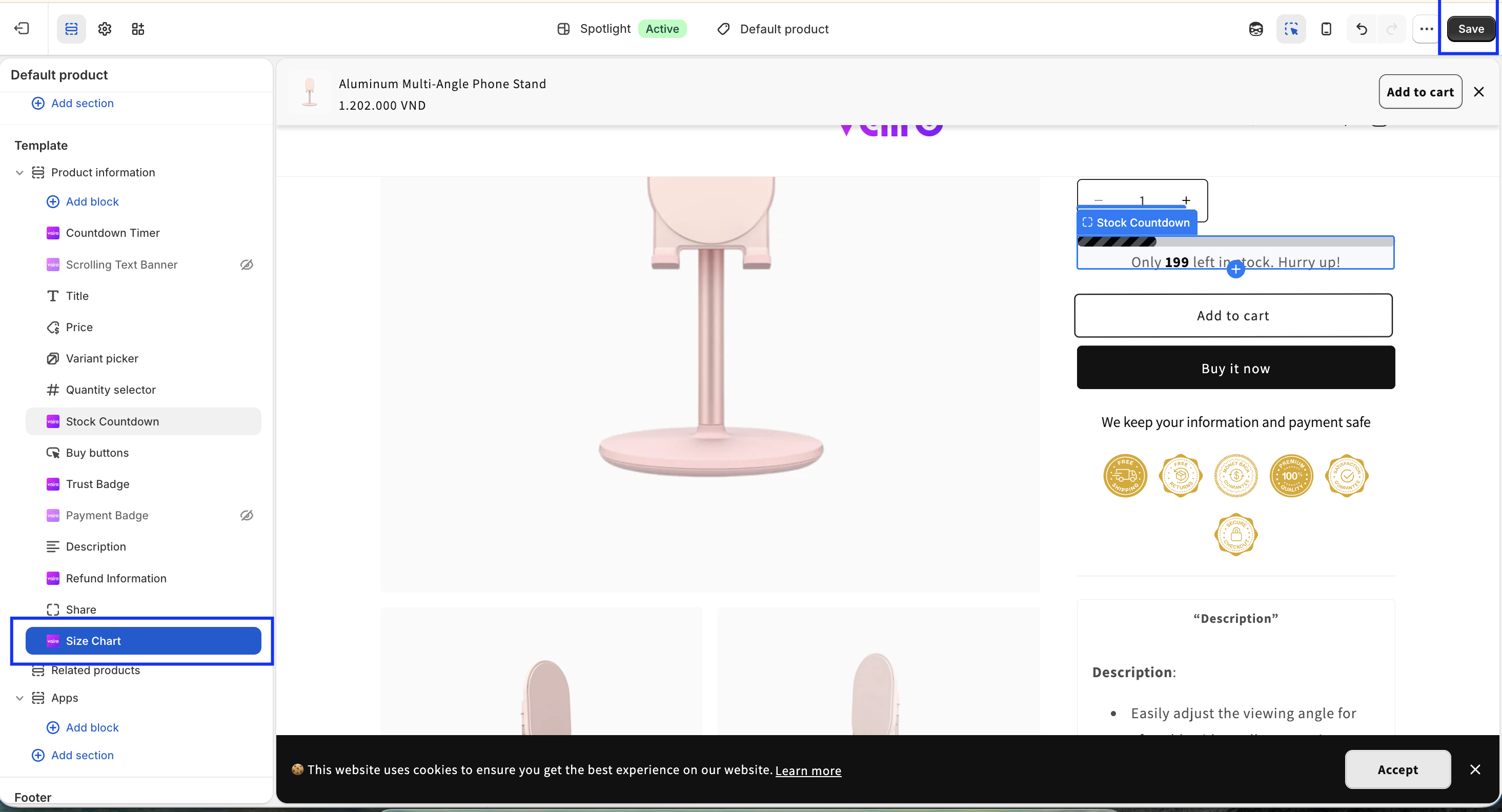
- Click Save.
- Return to the app and click Verify Now to confirm the app block was added successfully.
Floating Button
- Select Floating Button to display a floating size chart button automatically on product pages.
Need help?
If you need further assistance, feel free to contact our support team at [email protected].