How to Set Up Content Protection in Vairo
Content Protection helps prevent unauthorized copying or misuse of your store content by disabling actions such as text selection, right-click, drag-and-drop, and common keyboard shortcuts.
This feature helps protect your product descriptions, images, and other proprietary content from being easily copied.
How to Set It Up
Step 1: Enable Vairo App Embed
- Make sure the Vairo App Embed is enabled before setting up Content Protection.
- If you haven't enabled it yet, follow this guide: How to Enable Vairo App Embed.
Step 2: Activate Content Protection
- Open Vairo in your Shopify Admin.
- Navigate to Legal > Content Protection.
- Click Activate feature and Save.
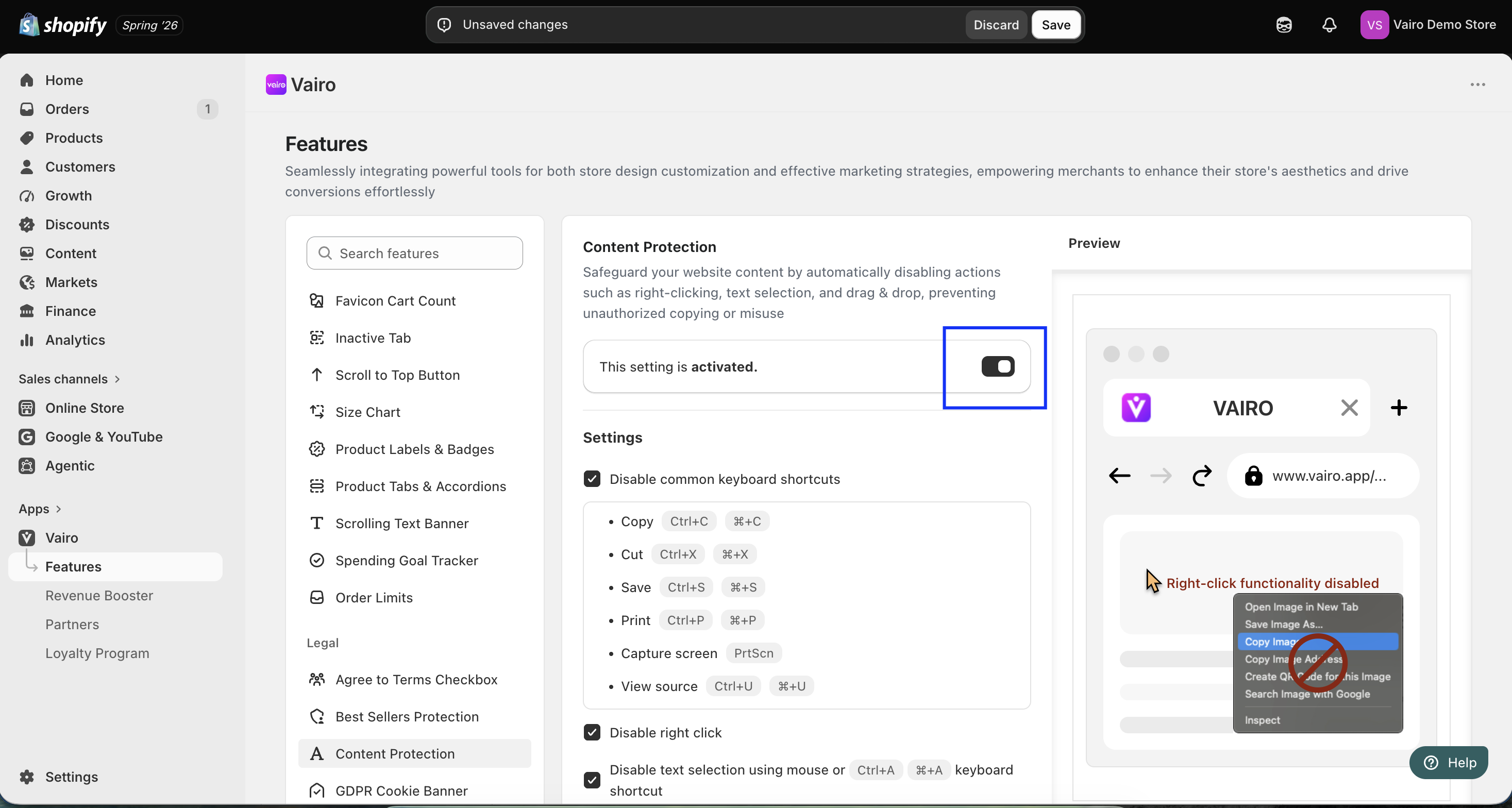
Step 3: Configure the Content Protection Settings
In the Settings section, you can enable or disable the following protections:
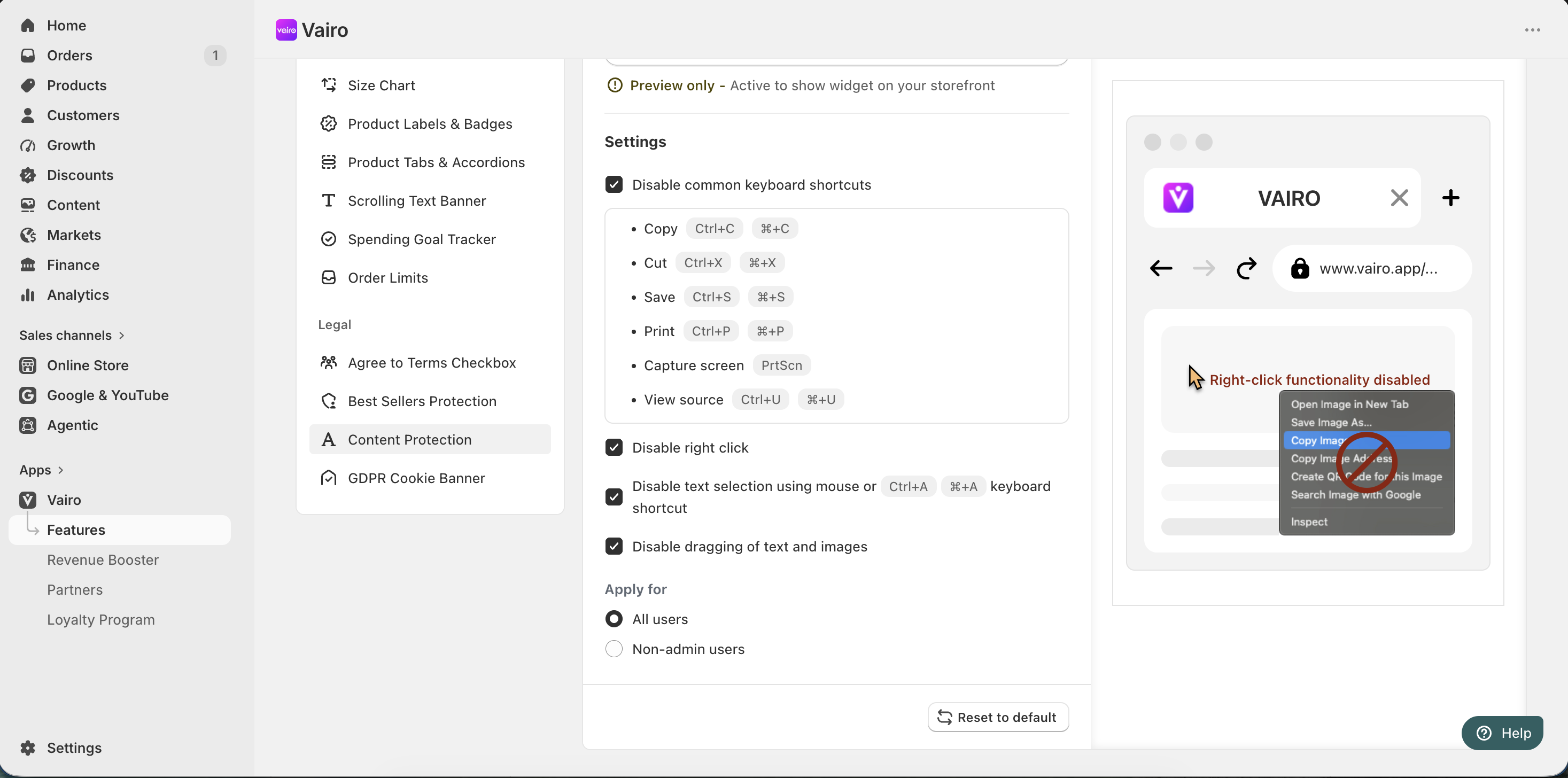
- Disable common keyboard shortcuts, including:
- Copy (Ctrl + C / ⌘ + C)
- Cut (Ctrl + X / ⌘ + X)
- Save (Ctrl + S / ⌘ + S)
- Print (Ctrl + P / ⌘ + P)
- Capture screen (PrtScn)
- View source (Ctrl + U / ⌘ + U)
- Disable right click
- Disable text selection using mouse or Ctrl + A / ⌘ + A keyboard shortcut
- Disable dragging of text and images
Under Apply for, choose who the protection applies to:
- All users
- Non-admin users
After completing the setup, visit your storefront to verify that the selected protections are working correctly.
Need help?
If you need further assistance, feel free to contact our support team at [email protected].