How to Set Up Inactive Tab in Vairo
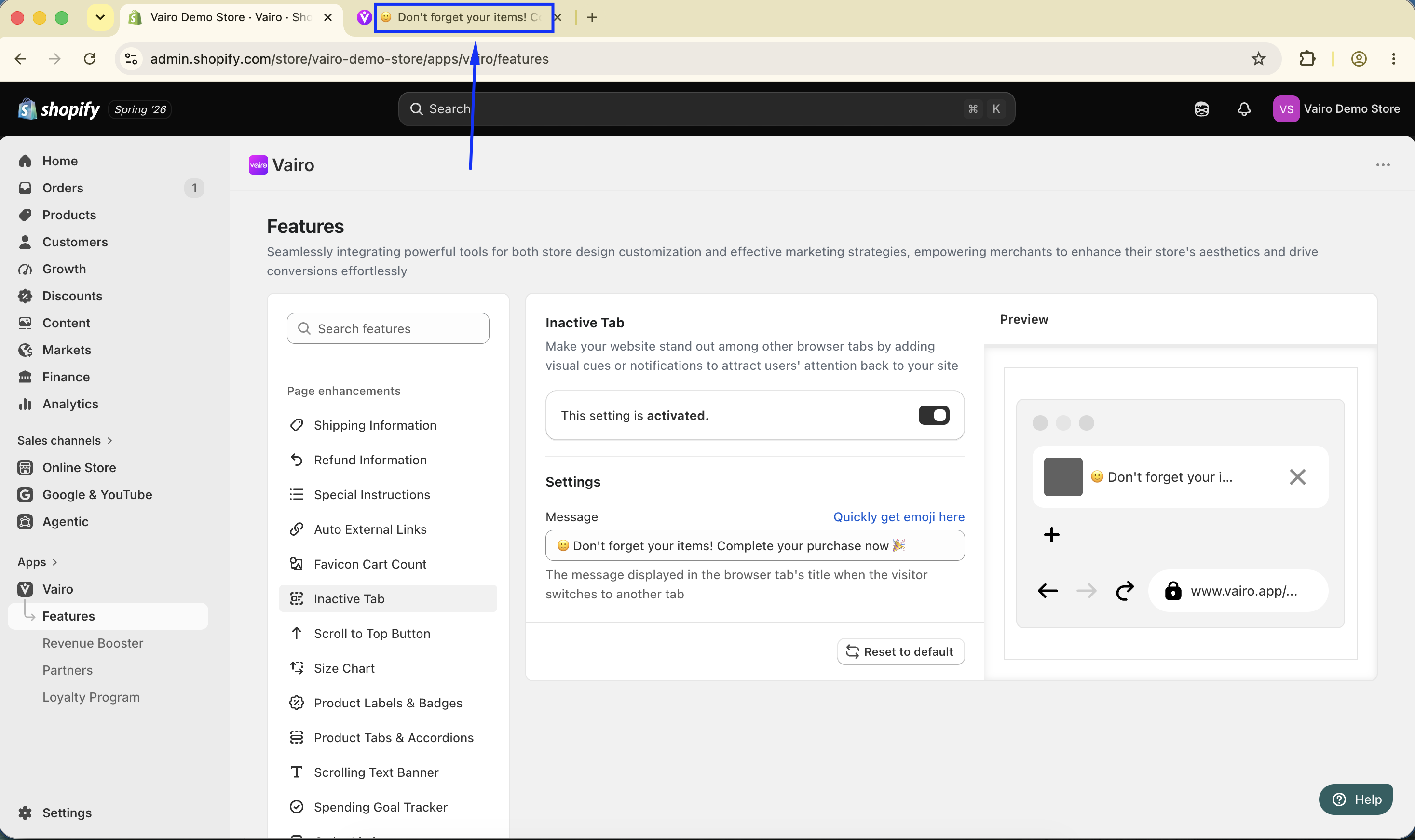
The Inactive Tab feature displays a custom message in the browser tab title when customers switch to another tab. This helps grab their attention and encourages them to return to your store to continue shopping or complete their purchase.
How the Inactive Tab Appears on Your Storefront
How to Set It Up
Step 1: Enable Vairo App Embed
- Make sure the Vairo App Embed is enabled before setting up the Inactive Tab feature.
- If you haven't enabled it yet, follow this guide: How to Enable Vairo App Embed.
Step 2: Activate the Inactive Tab Feature
- Open Vairo in your Shopify Admin.
- Navigate to Page enhancements > Inactive Tab.
- Click Activate feature and Save.
- Enter the message you want to display in the browser tab title when the tab becomes inactive.
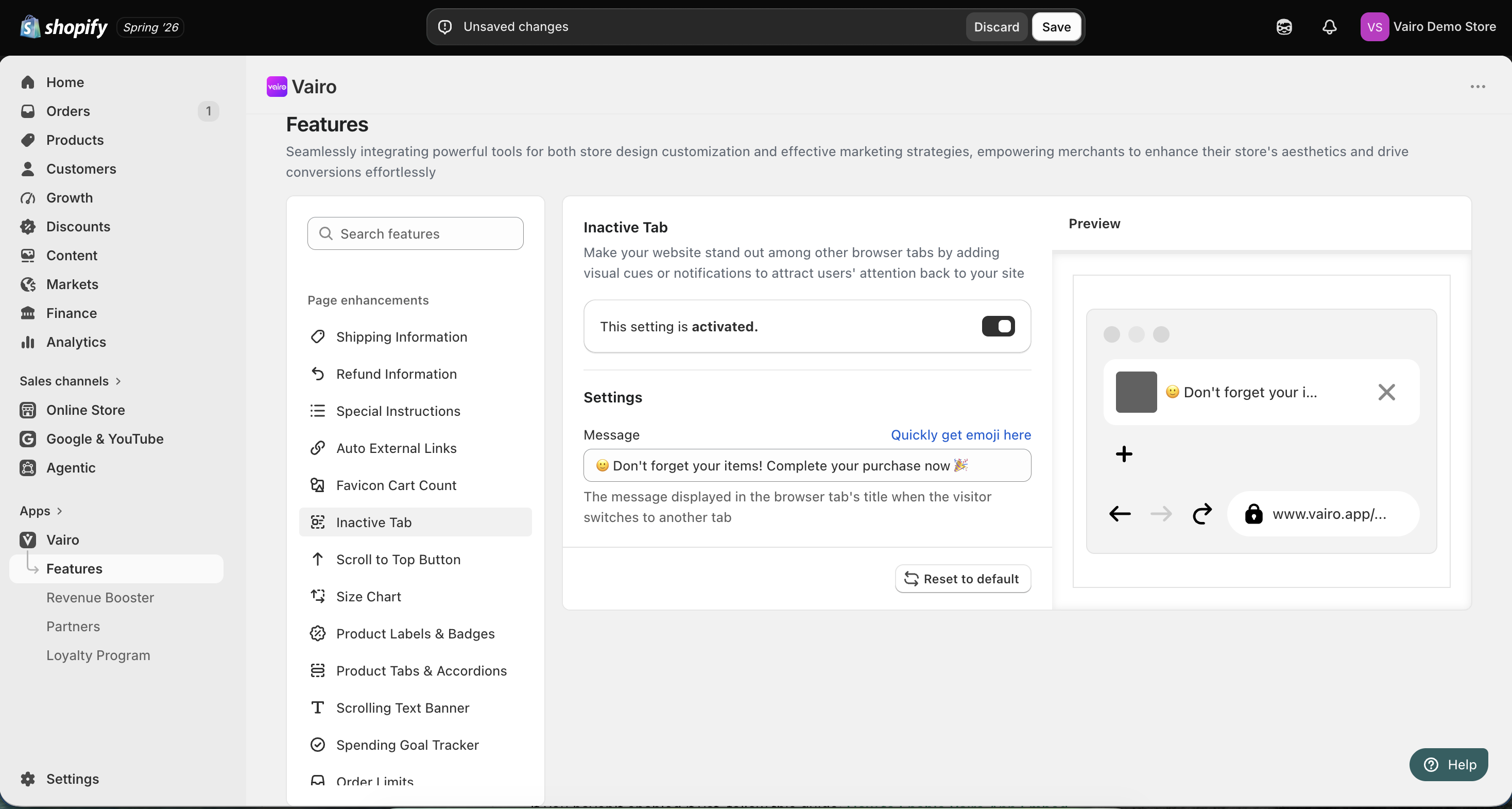
After completing the setup, switch to another browser tab to verify that the custom title is displayed correctly.
Need help?
If you need further assistance, feel free to contact our support team at [email protected].