How to Set Up Sales Pop-up in Vairo
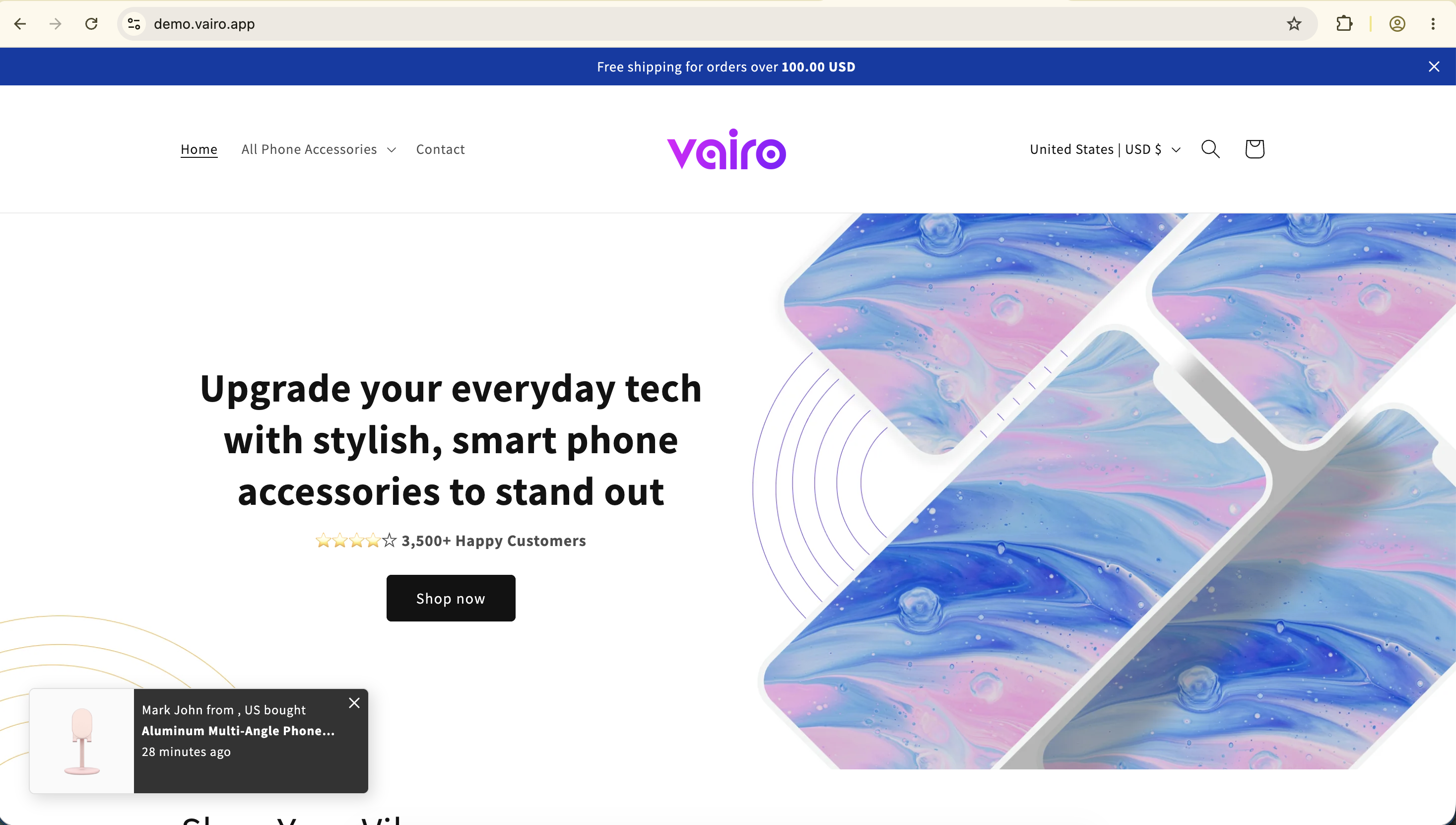
Sales Pop-ups display recent purchases and customer activity on your storefront to build trust and create a sense of urgency. By showing that other customers are actively shopping, Sales Pop-ups encourage visitors to make purchasing decisions with greater confidence.
How Sales Pop-ups Appear on Your Storefront
How to Set It Up
Step 1: Activate the Sales Pop-up Feature
- Open Vairo in your Shopify Admin.
- Navigate to Social proof > Sales Pop-up.
- Click Activate feature and Save.
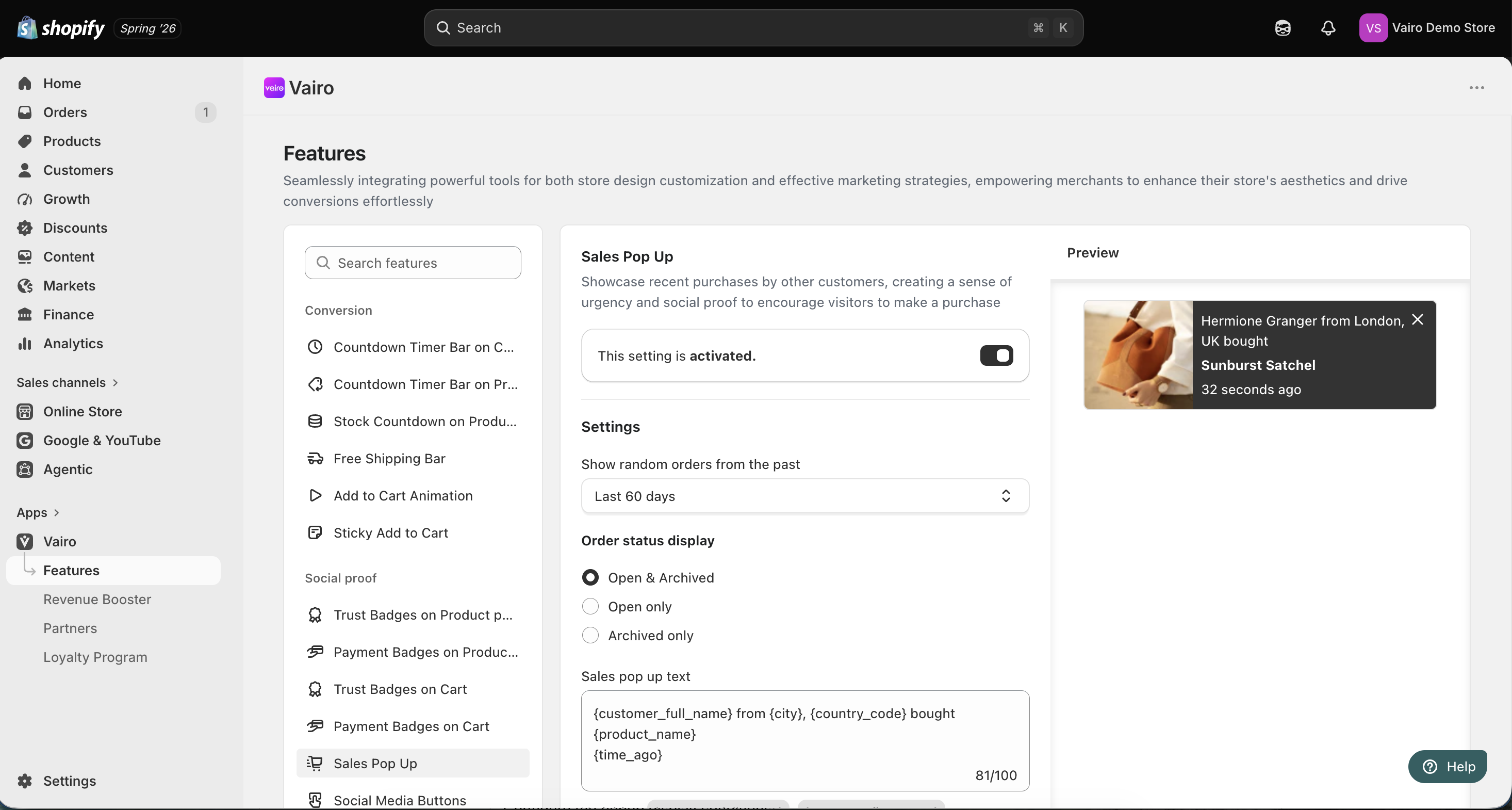
Step 2: Configure the Sales Pop-up Settings
In the Settings section, you can customize how the Sales Pop-up is displayed.
Show Random Orders from the Past
Choose the time range used to display recent orders.
Available options include:
- Today
- Yesterday
- Last 7 days
- Last 30 days
- Last 60 days
Order Status Display
Choose which orders are included in the Sales Pop-up.
- Open & Archived
- Open only
- Archived only
Sales Pop-up Text
Customize the popup message using the available variables.
Available variables include:
{customer_full_name}{customer_first_name}{customer_last_name}{city}{country_code}{product_name}{time_ago}
Placement
Choose where the Sales Pop-up is displayed.
- Show on all pages
- Show on specific pages
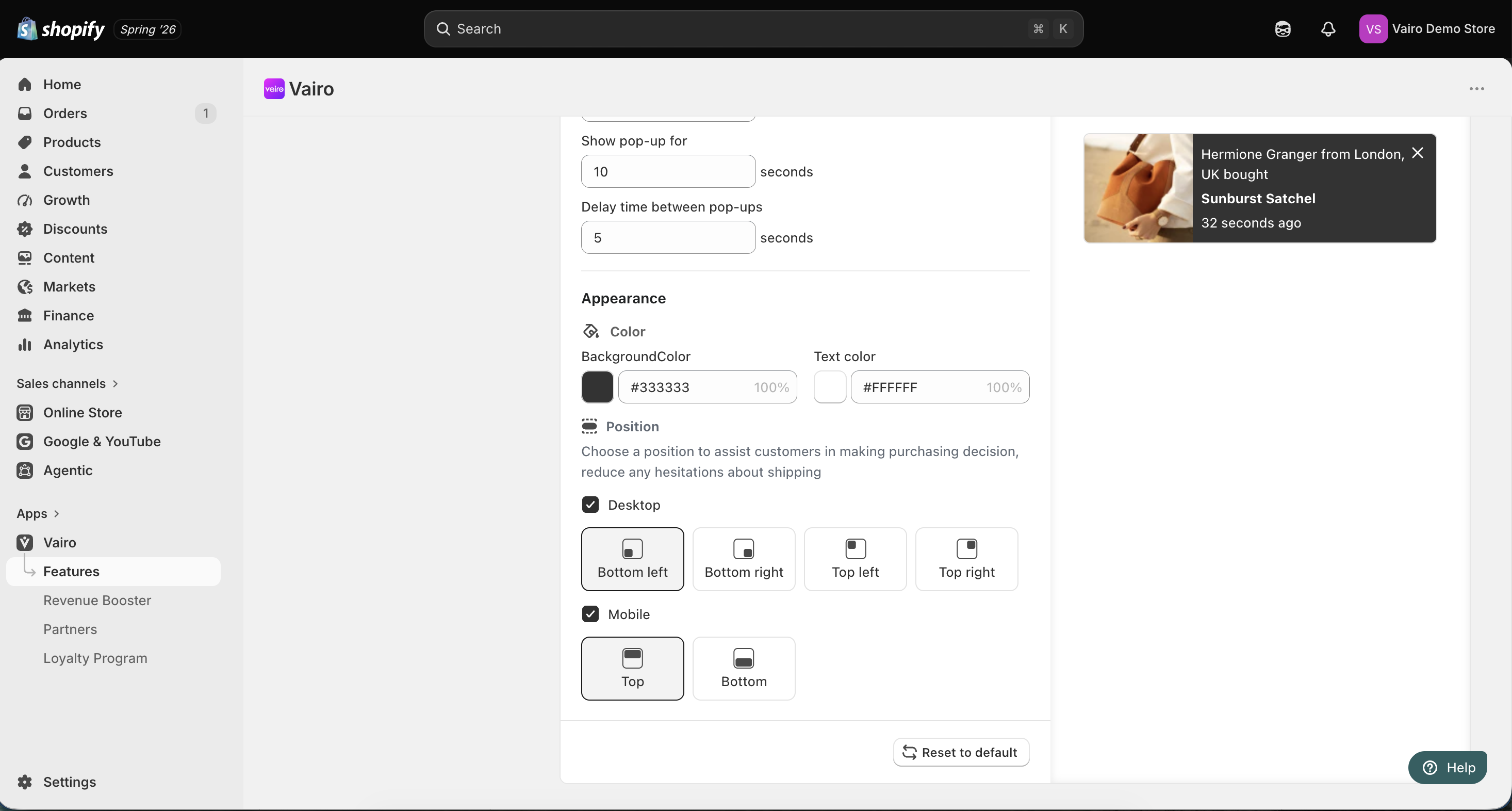
Timing
Configure when the Sales Pop-up appears.
- Set the delay before showing the first pop-up after a visitor enters your store.
- Set how long each pop-up is displayed.
- Set the delay time between pop-ups.
Step 3: Customize the Sales Pop-up Appearance
In the Appearance section, you can:
- Customize the background color.
- Customize the text color.
- Choose the popup position for desktop and mobile devices.
After completing the setup, visit your storefront to make sure the Sales Pop-up displays correctly.
Need help?
If you need further assistance, feel free to contact our support team at [email protected].