How to Set Up Scrolling Text Banner in Vairo
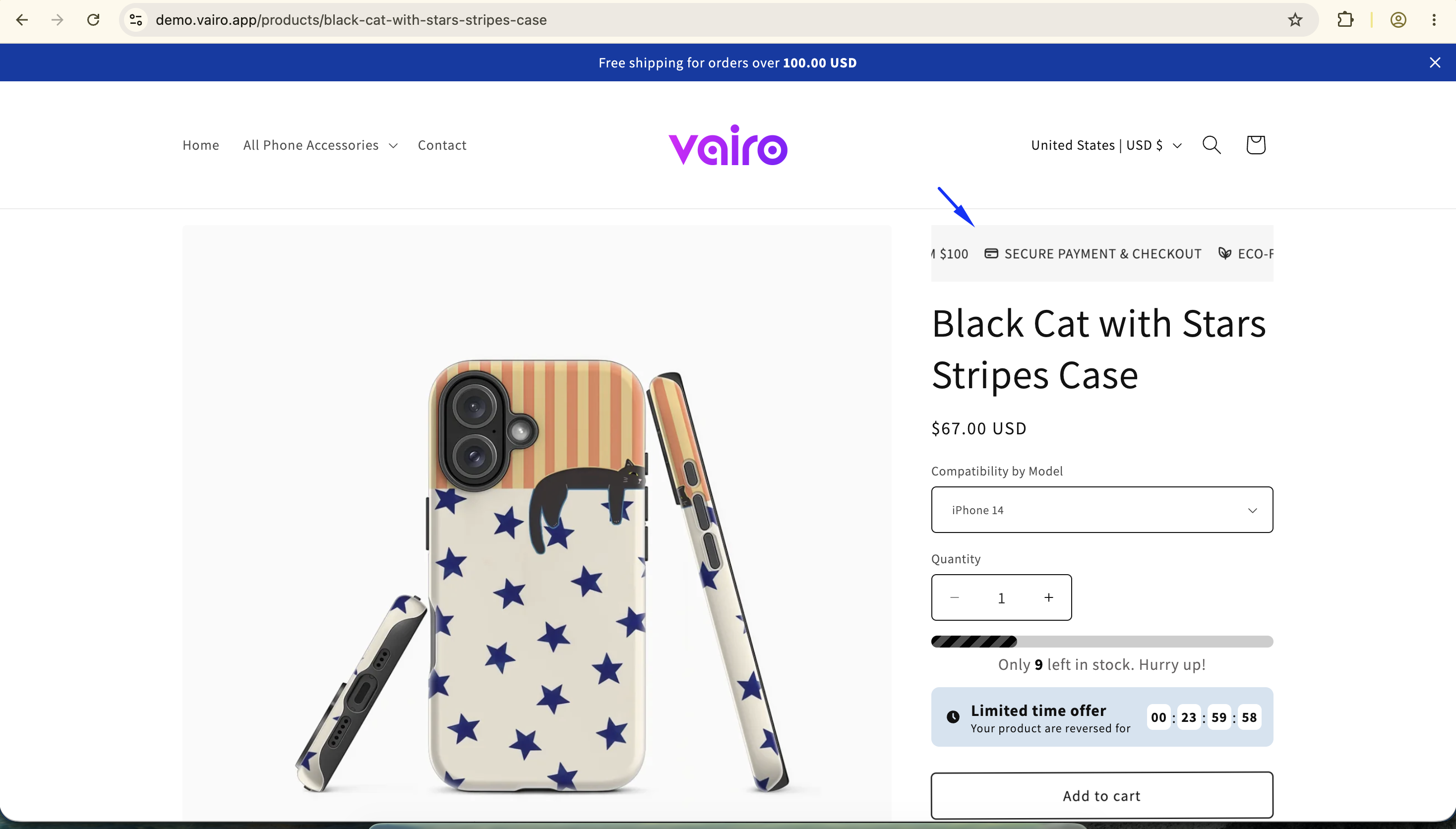
The Scrolling Text Banner helps you highlight promotions, important announcements, or key messages across your storefront. It captures customers' attention with an animated banner, making it easier to promote time-sensitive offers and important updates.
How the Scrolling Text Banner Appears on Your Storefront
How to Set It Up
Step 1: Add the Scrolling Text Banner Widget
- Open Vairo in your Shopify Admin.
- Navigate to Page enhancements > Scrolling Text Banner.
- Click Add widget.
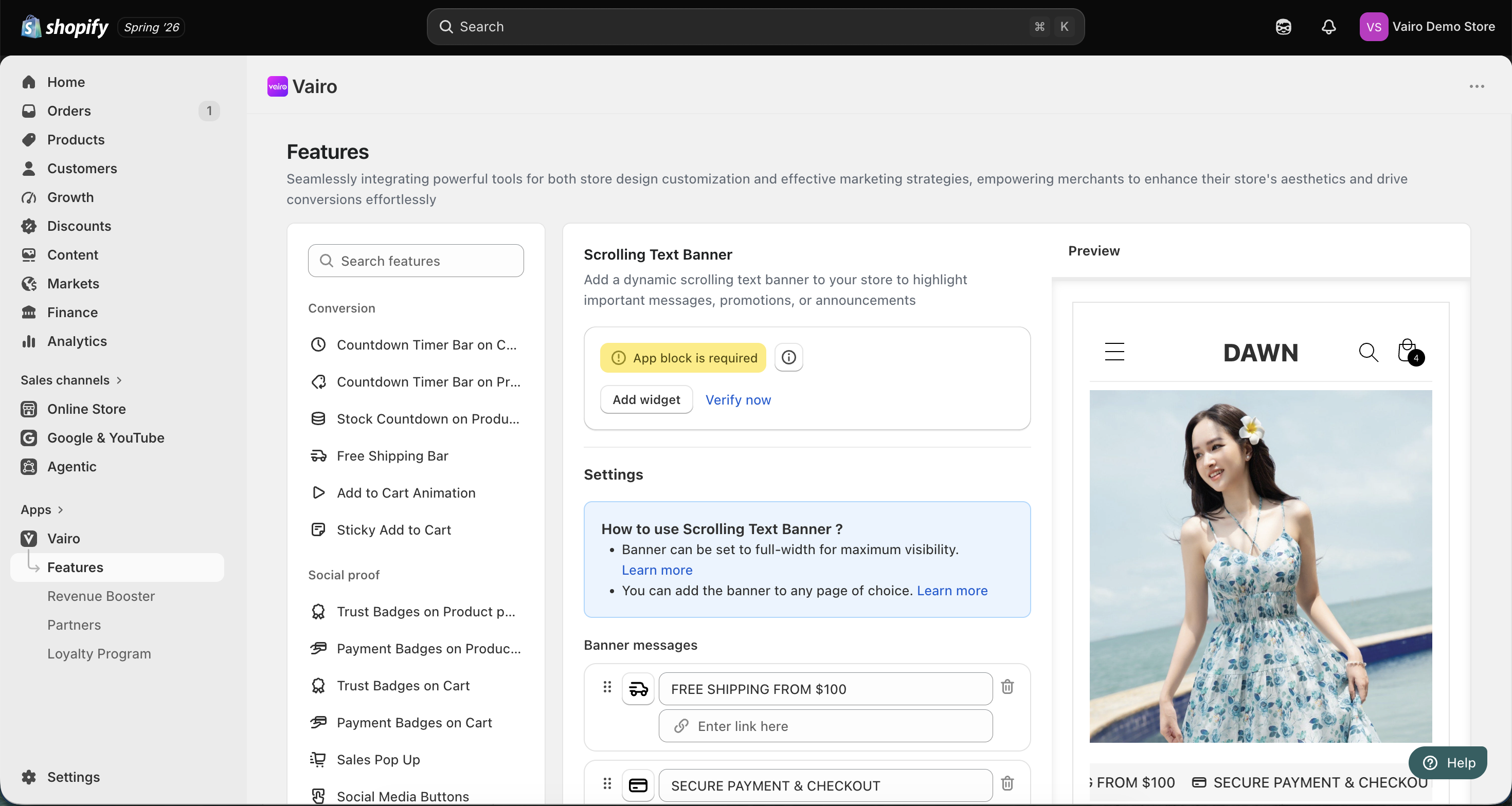
You will be redirected to the Shopify Theme Editor.
- Drag and place the Scrolling Text Banner app block in your preferred position.
- Click Save.
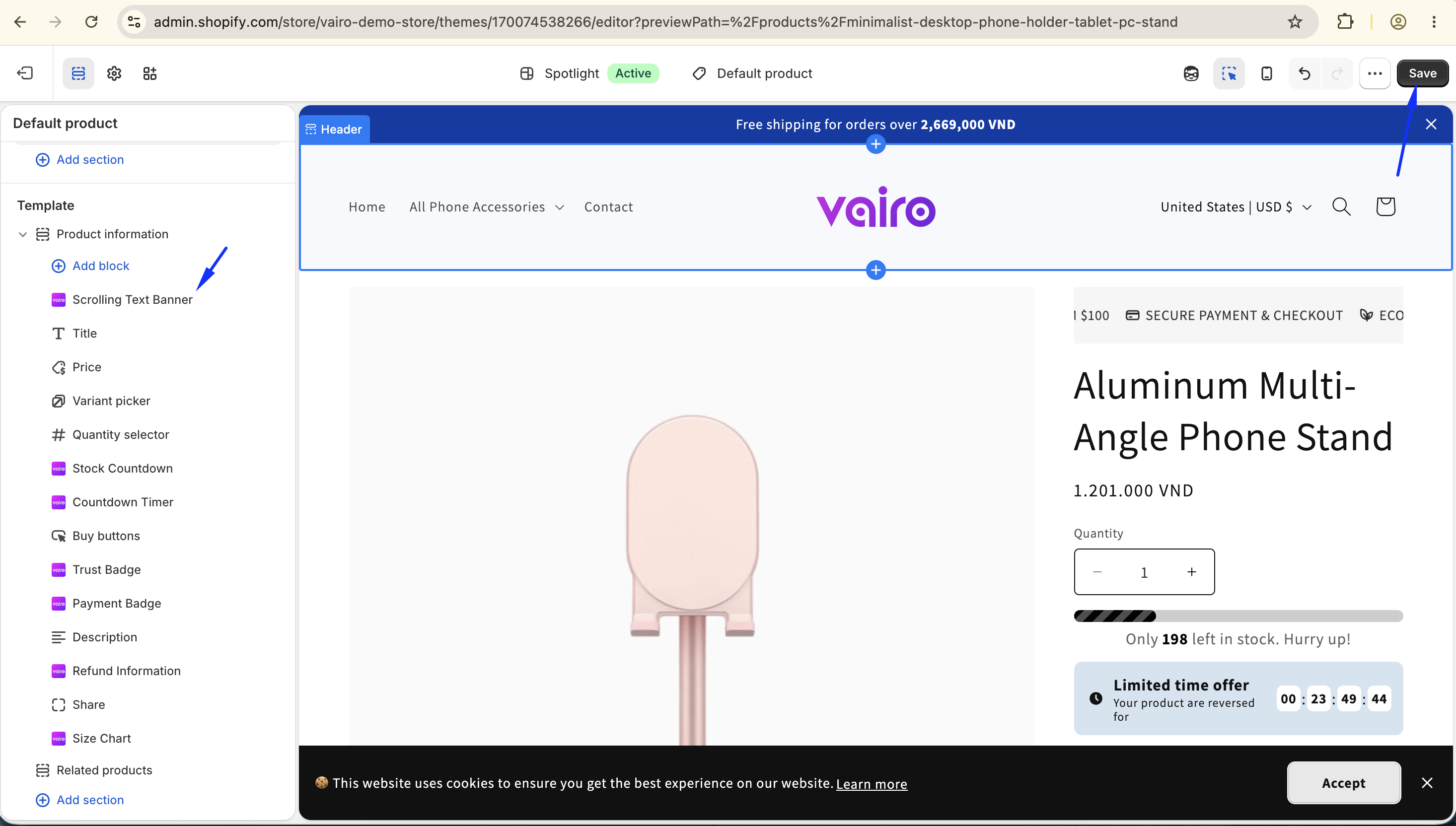
- Return to the app and click Verify now to confirm the app block was added successfully.
Step 2: Configure the Banner Messages
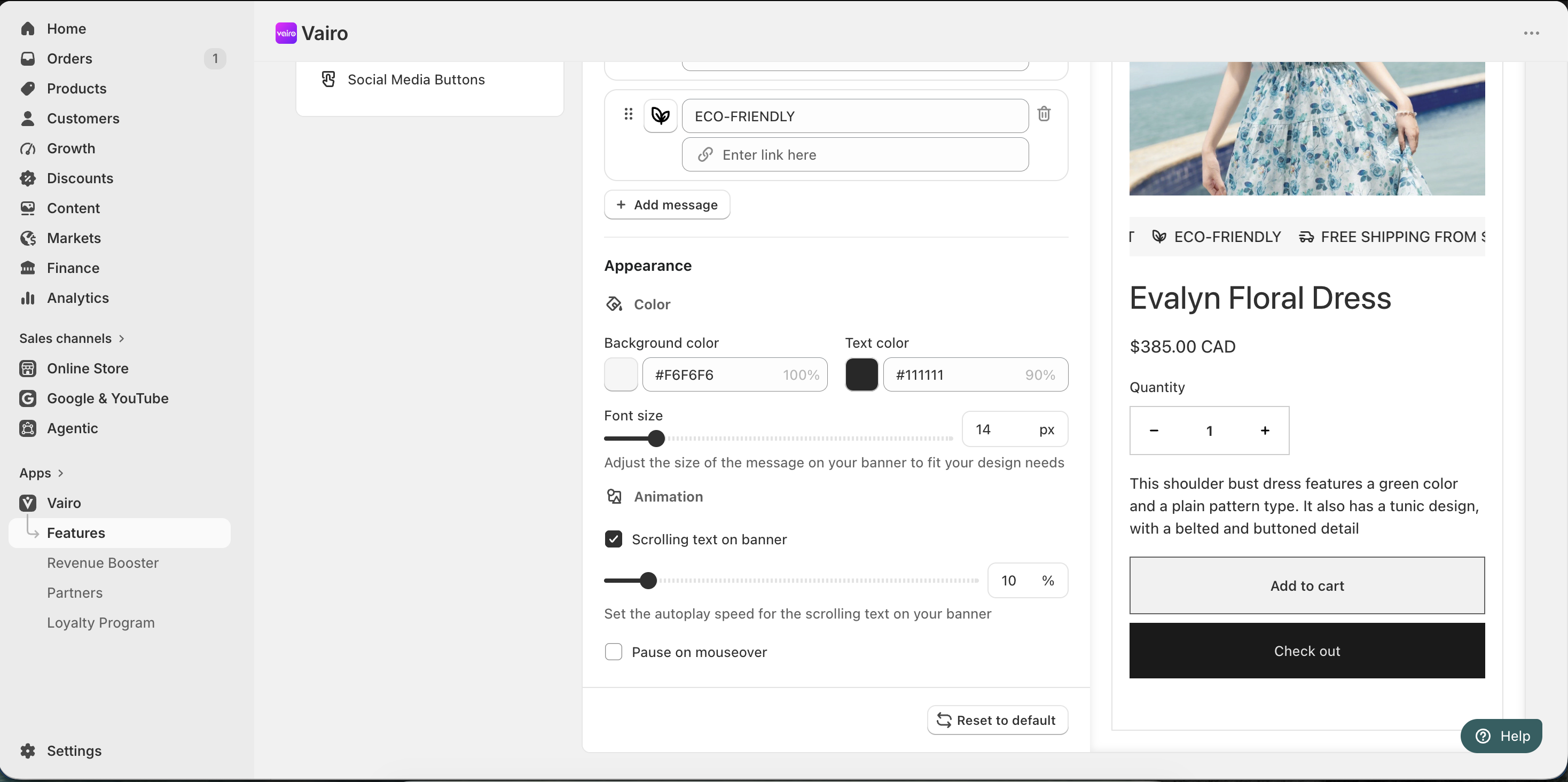
In the Banner messages section, you can create one or more scrolling messages.
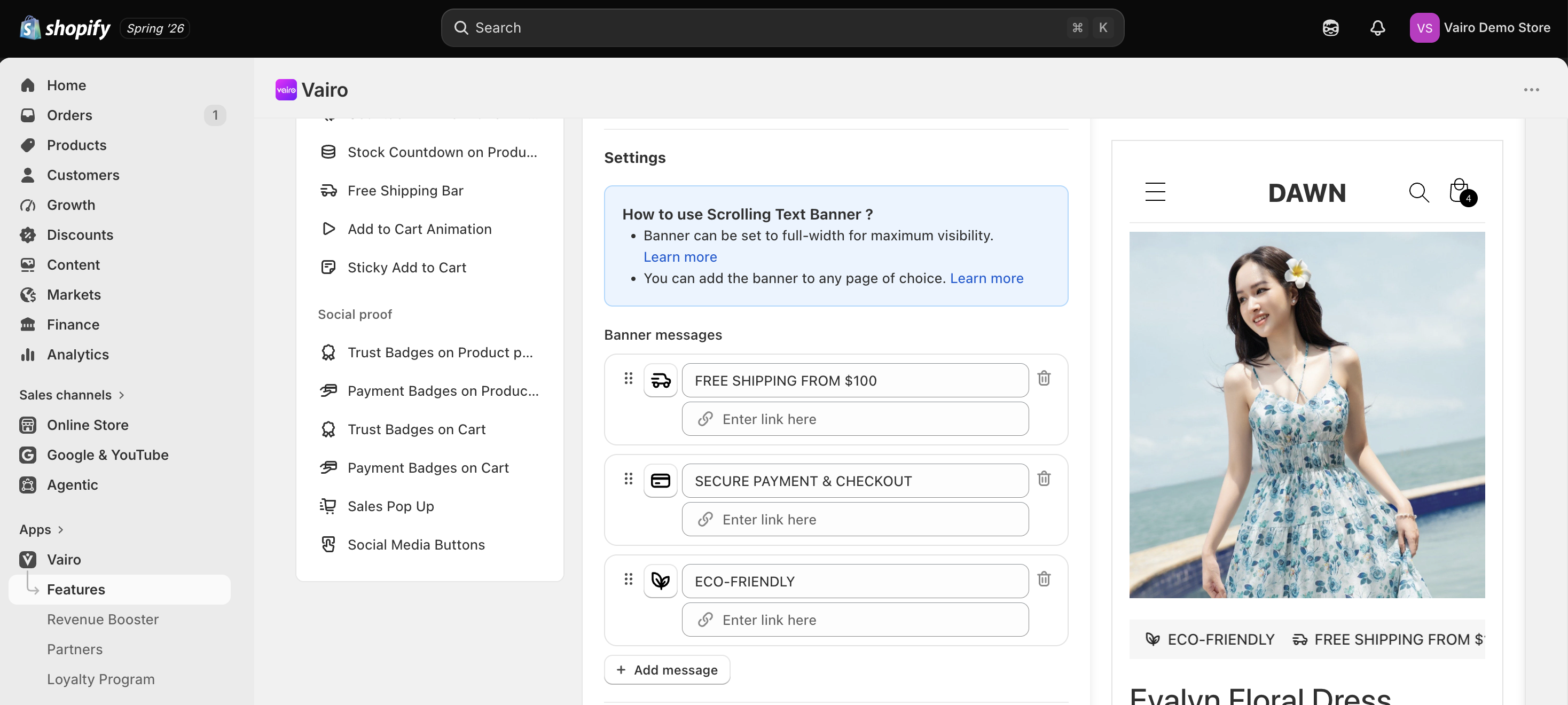
For each banner message, you can:
- Enter the banner text.
- Choose an icon.
- Add a destination link.
You can create multiple banner messages. They will be displayed in the order you arrange them.
Step 3: Customize the Scrolling Text Banner Appearance
In the Appearance section, you can:
- Customize the banner colors.
- Adjust the banner size for desktop and mobile devices.
- Choose the animation style:
- Scrolling text
- Static text
- Set the autoplay speed.
- Enable Pause on mouseover so the animation stops when customers hover over the banner.
After completing the setup, visit your storefront to make sure the Scrolling Text Banner displays correctly.
Need help?
If you need further assistance, feel free to contact our support team at [email protected].