How to Set Up Special Instructions in Vairo
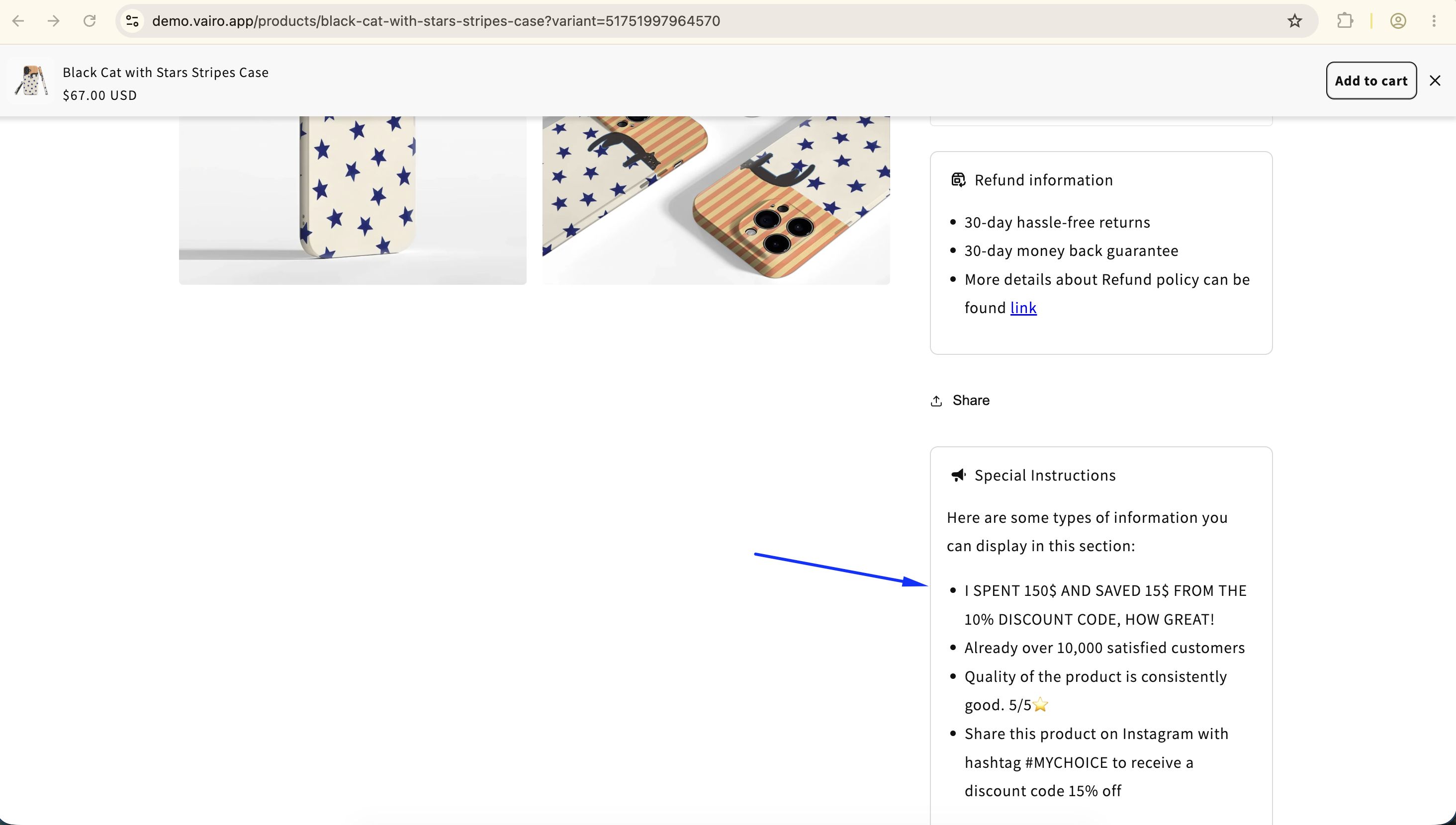
The Special Instructions feature lets you display additional product information, purchasing instructions, or other important details directly on the product page. This helps customers better understand your products, builds trust, and gives them more confidence before completing their purchase.
How the Special Instructions Appear on Your Storefront
How to Set It Up
Step 1: Add the Special Instructions Widget
- Open Vairo in your Shopify Admin.
- Navigate to Page enhancements > Special Instructions.
- Click Add widget.
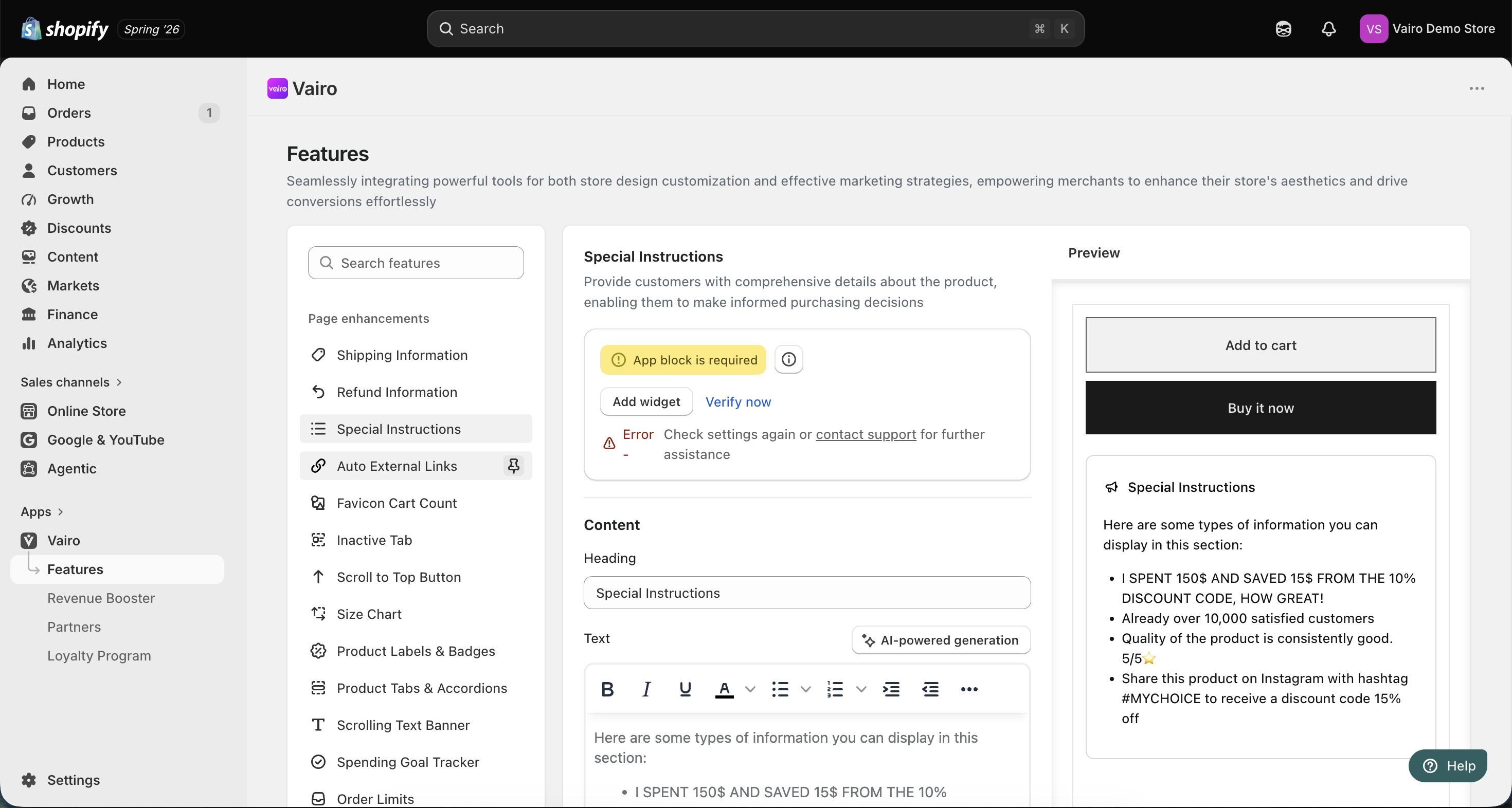
You will be redirected to the Shopify Theme Editor.
- Drag and place the Special Instructions app block in your preferred position.
- Click Save.
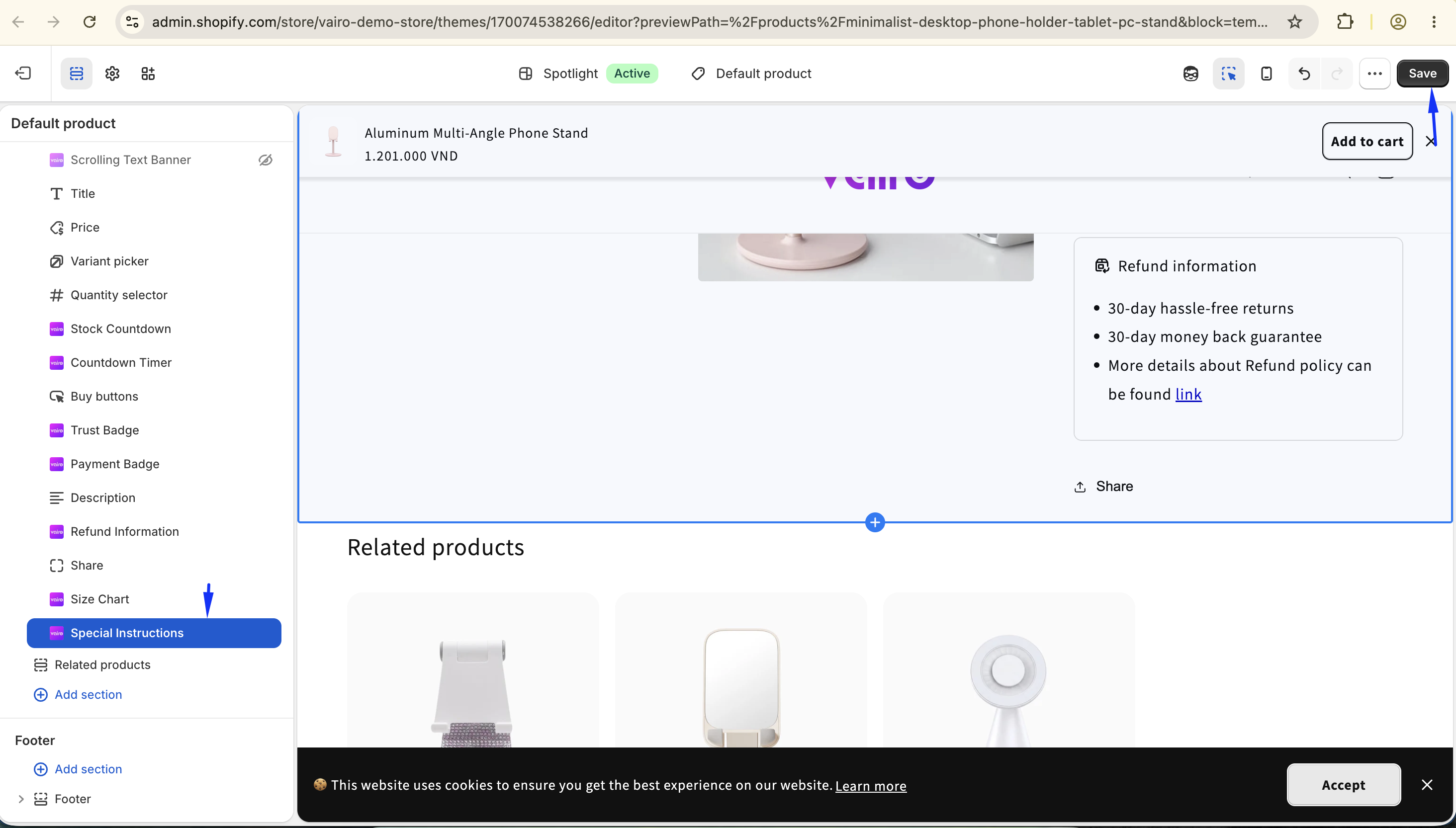
- Return to the app and click Verify now to confirm the app block was added successfully.
Step 2: Configure the Special Instructions Content
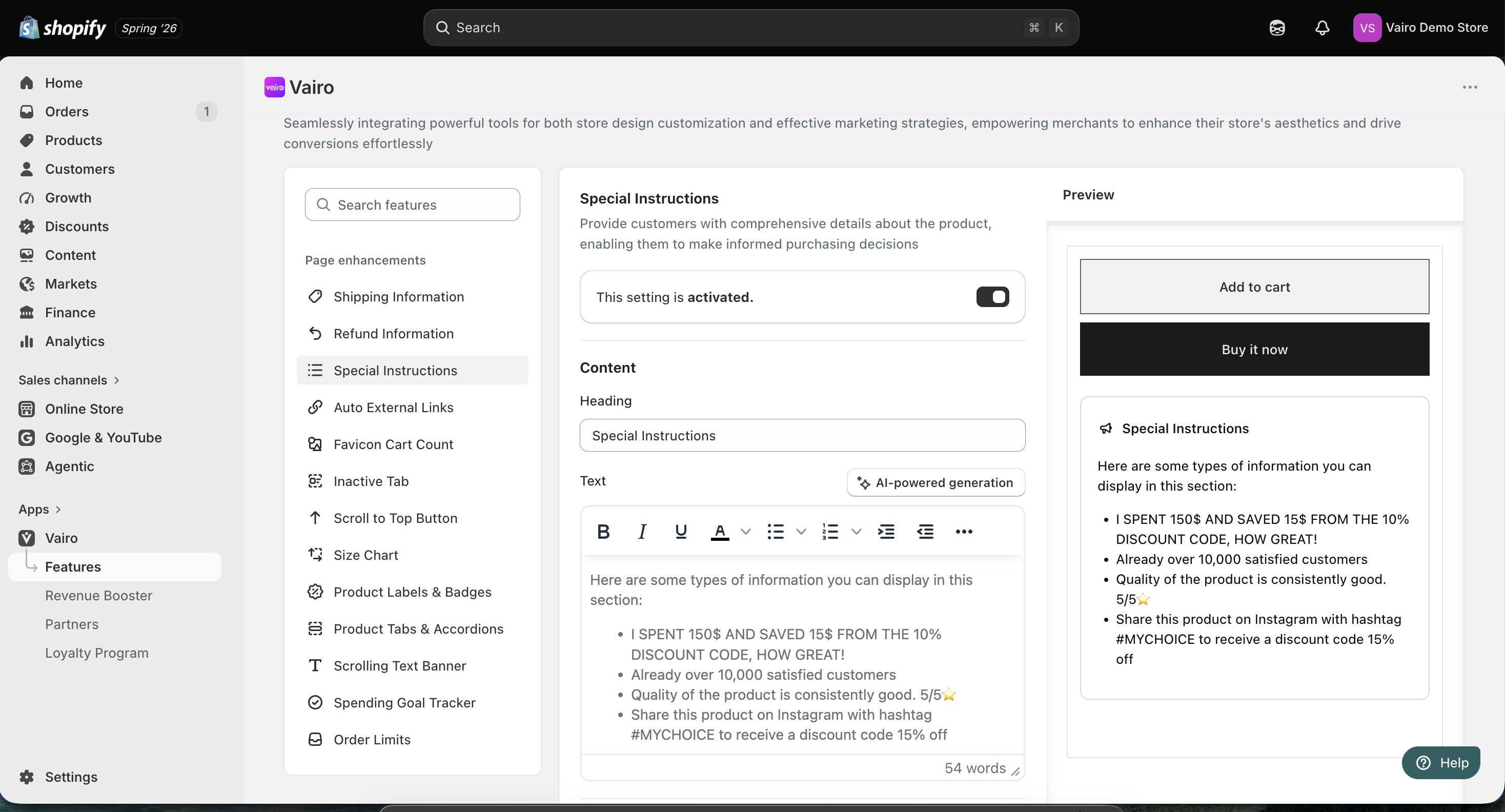
In the Content section, you can customize the information displayed on the product page.
- Enter a Heading.
- Enter the Text you want to display using the rich text editor.
- Click AI-powered generation if you'd like AI to generate the content for you.
Note: AI-powered generation can be used up to 20 times per day.
Step 3: Customize the Special Instructions Appearance
In the Appearance section, you can:
- Choose a template:
- Default
- Comfortable
- Customize the:
- Background color
- Border color
- Text color
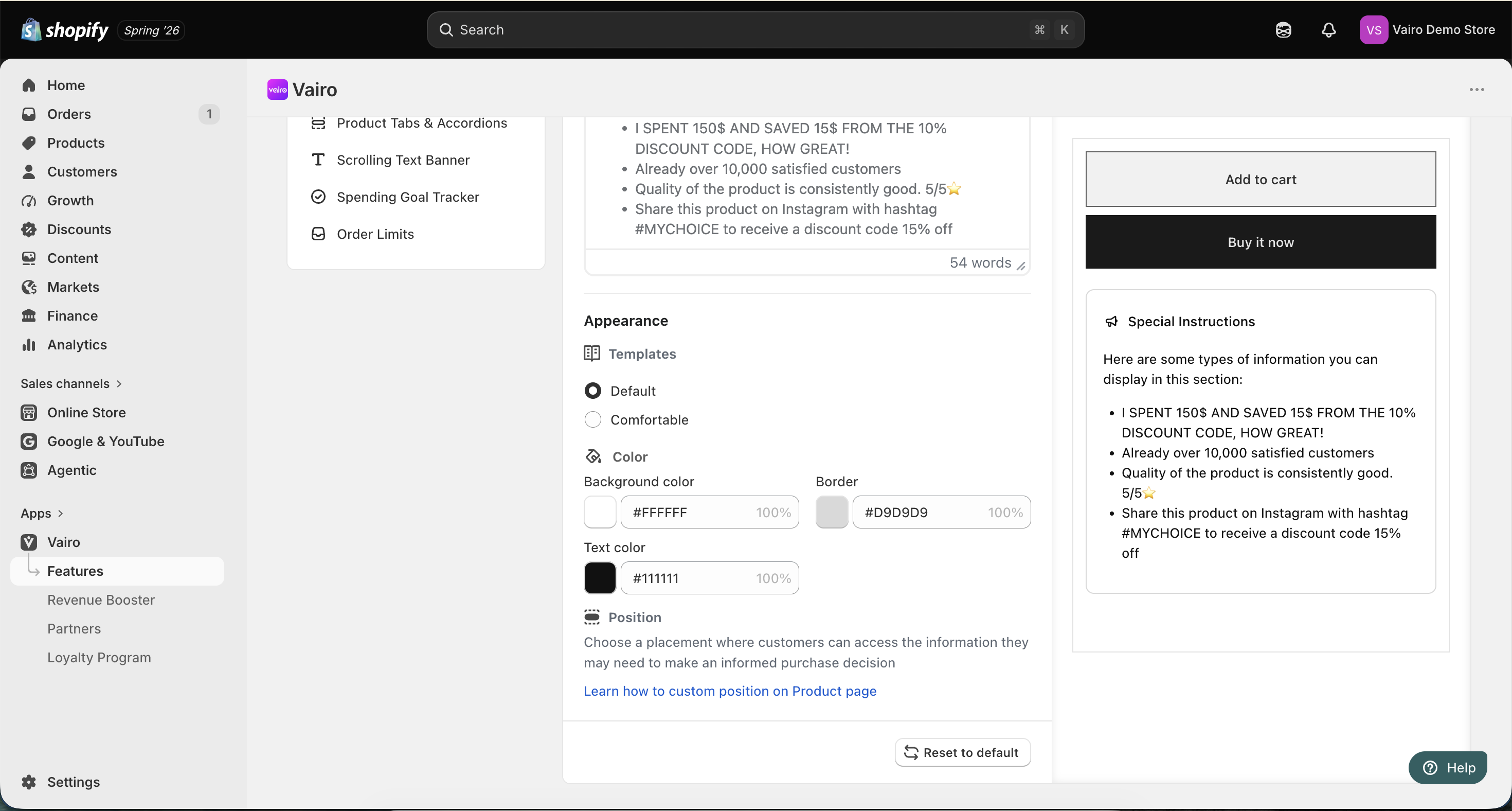
After completing the setup, visit your storefront to make sure the Special Instructions display correctly.
Need help?
If you need further assistance, feel free to contact our support team at [email protected].