How to Set Up Spending Goal Tracker in Vairo
The Spending Goal Tracker encourages customers to spend more by showing their progress toward unlocking a discount. As customers add products to their cart, the tracker updates automatically to motivate them to reach the reward.
How the Spending Goal Tracker Appears on Your Storefront
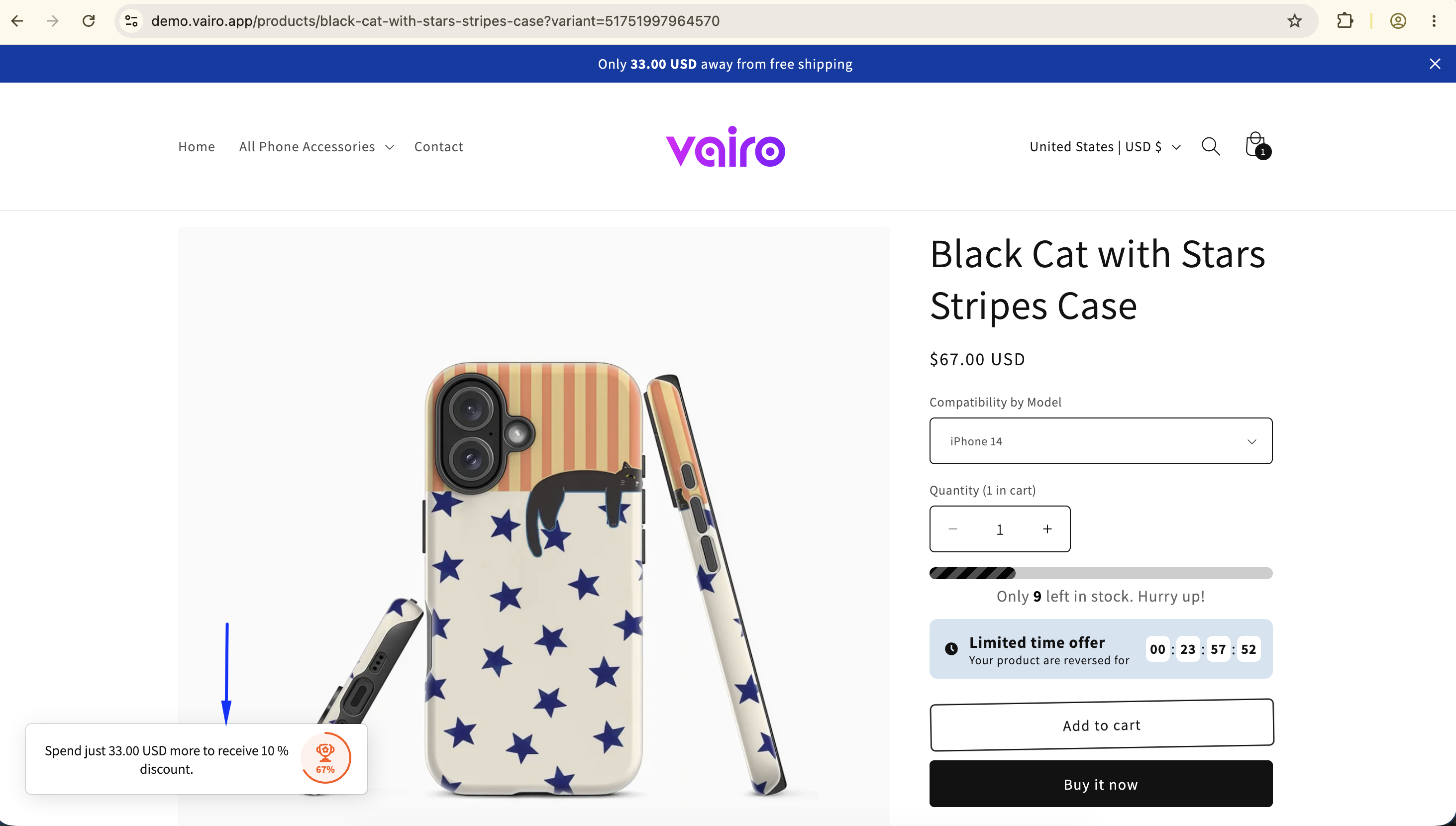
How to Set It Up
Step 1: Enable Vairo App Embed
- Make sure the Vairo App Embed is enabled before setting up the Spending Goal Tracker.
- If you haven't enabled it yet, follow this guide: How to Enable Vairo App Embed.
Step 2: Activate the Spending Goal Tracker
- Open Vairo in your Shopify Admin.
- Navigate to Page enhancements > Spending Goal Tracker.
- Click Activate feature and Save.
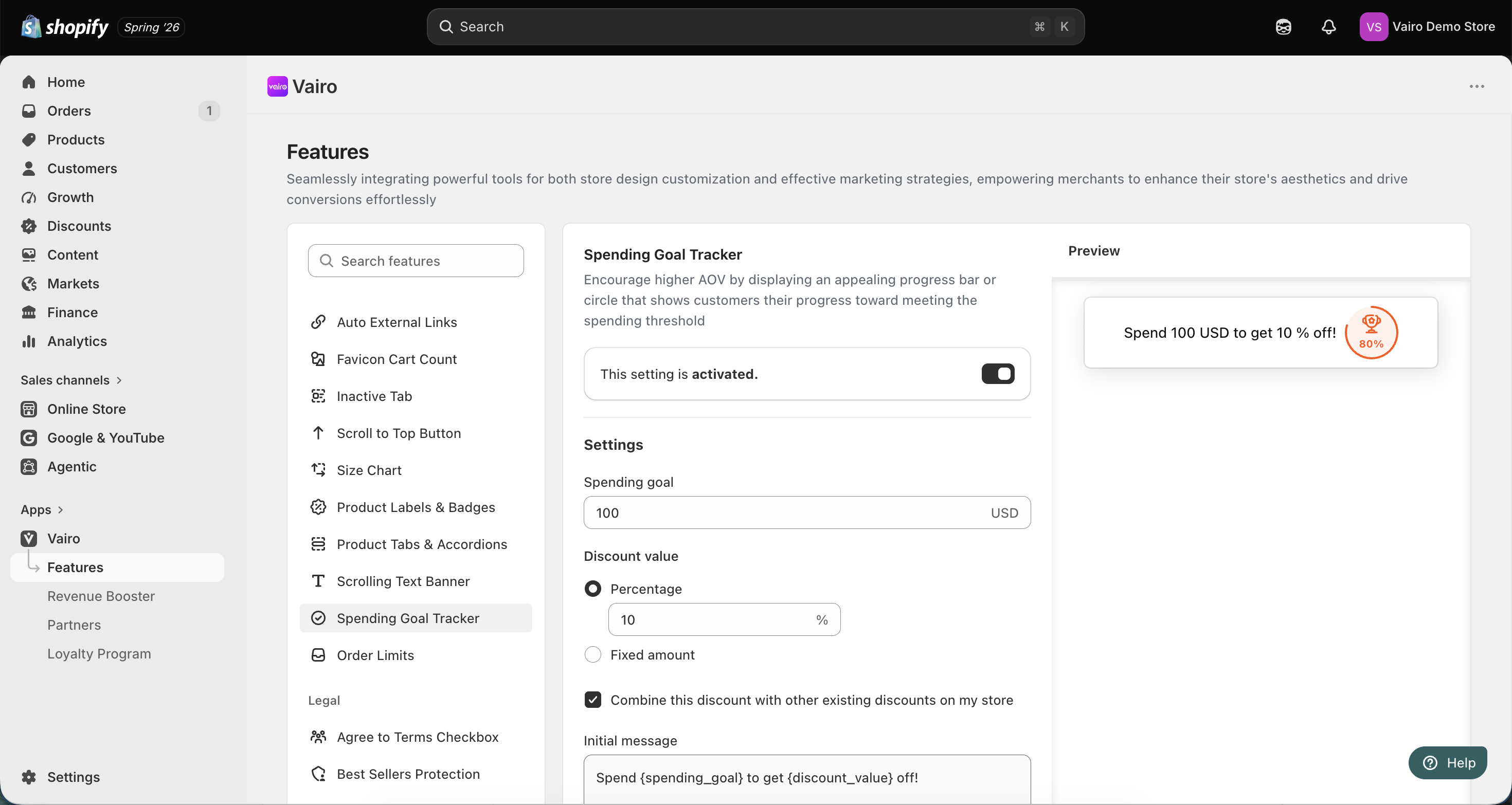
Step 3: Configure the Spending Goal Tracker
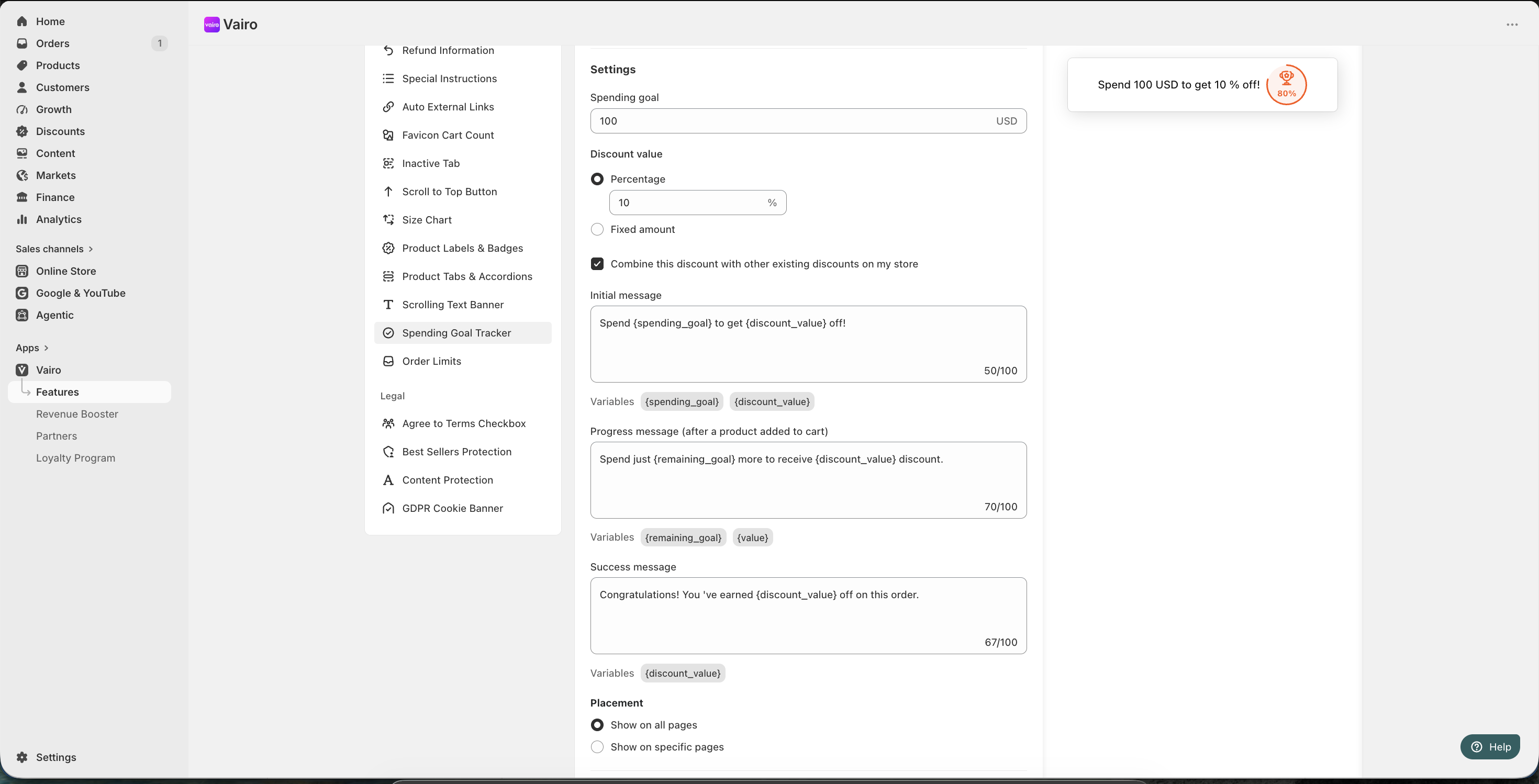
In the Settings section, configure your promotion.
Spending Goal
- Enter the spending goal customers need to reach.
- Choose the discount type:
- Percentage
- Fixed amount
- Optionally enable Combine this discount with other existing discounts.
Messages
Customize the messages displayed during different stages of the customer journey.
- Initial message — displayed before customers add products to their cart.
- Progress message — displayed after customers add products but have not yet reached the spending goal.
- Success message — displayed after customers unlock the reward.
You can use the available variables in each message to display dynamic values.
Placement
Choose where the Spending Goal Tracker is displayed:
- Show on all pages
- Show on specific pages
Step 4: Customize the Spending Goal Tracker Appearance
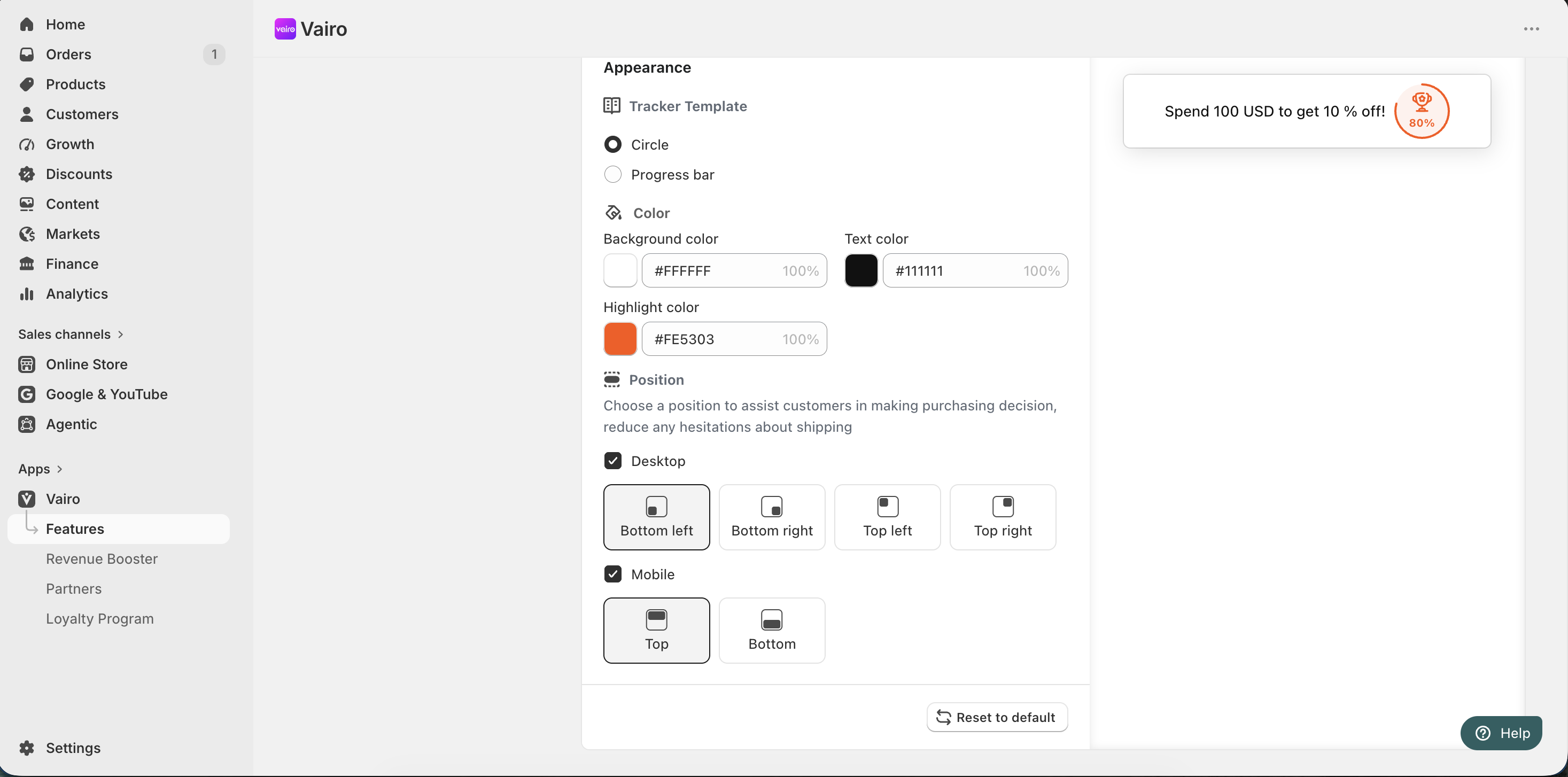
In the Appearance section, you can:
- Apply custom colors to match your store's branding.
- Choose the display position for desktop and mobile devices.
After completing the setup, visit your storefront to make sure the Spending Goal Tracker displays correctly.
Need help?
If you need further assistance, feel free to contact our support team at [email protected].